Reference
Keyboard shortcuts
Every shortcut Zerm offers — global triggers, recorder controls, and the ones that are unset until you choose them.
Zerm is driven from the keyboard. Nothing here is fixed: almost every shortcut on this
page can be rebound, and most start unset so they cannot collide with what you already
use.
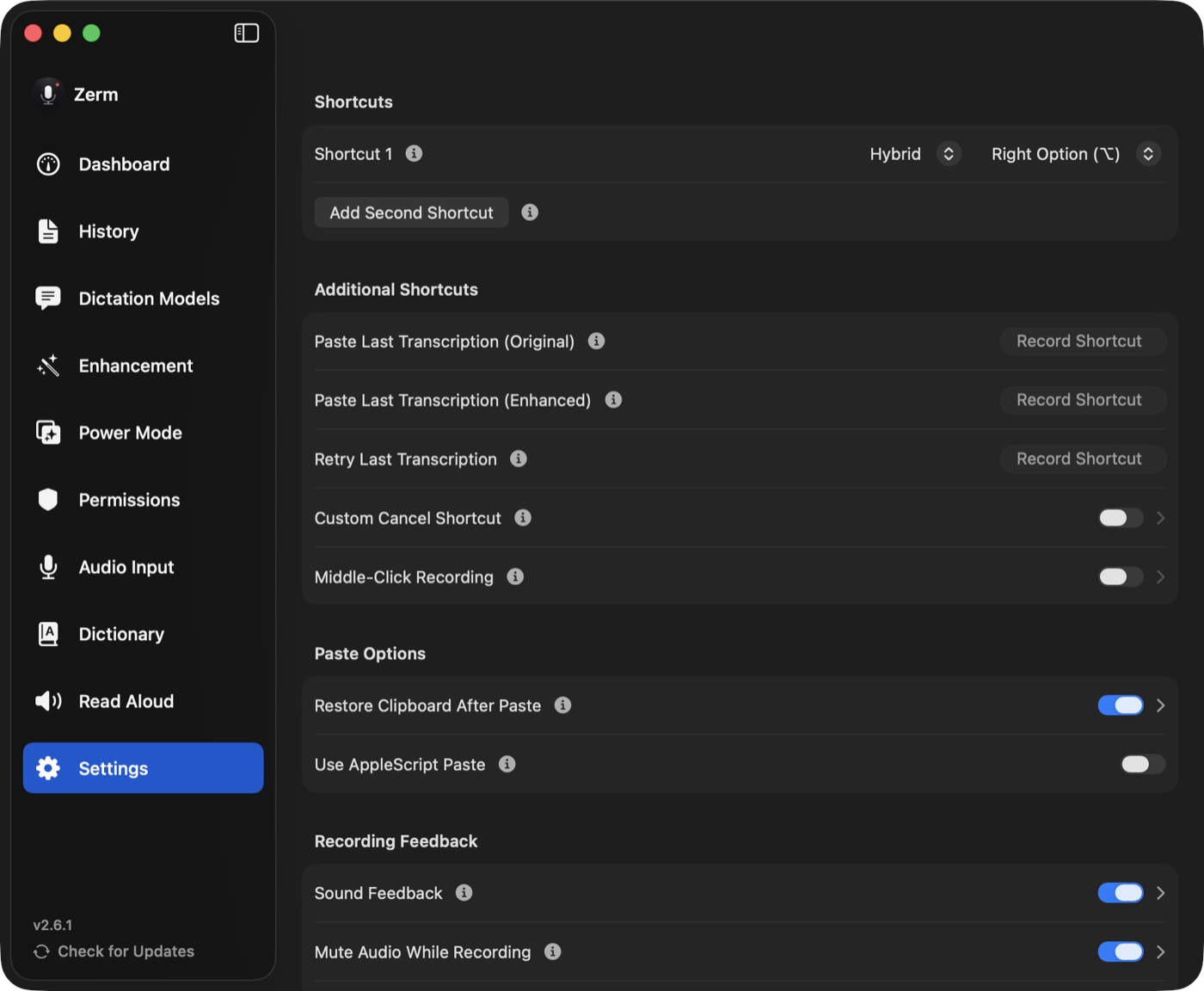
In Settings → Shortcuts, assigned-key conflicts appear below the affected recorder.
Use Restore Defaults at the end of Additional Shortcuts to return dictation to its
default key and clear custom shortcut recordings.
Dictation
You can configure two independent dictation shortcuts, Shortcut 1 and
Shortcut 2, each with its own trigger style. Shortcut 1 starts as Right Command.
A shortcut can be a bare modifier key — Right Option, Left Option, Right Command,
Left Command, Right Control, Left Control, Right Shift, or Fn — held on its own. This is the reason
Zerm feels quick: no chord to remember, just a key your other hand is not using.
Or choose Custom and record any combination you like.
Each shortcut has a mode:
| Mode | Behaviour |
|---|---|
| Push to talk | Records while held. Release to stop. |
| Toggle | Press to start, press again to stop. |
| Hybrid | A tap toggles; holding past half a second becomes push to talk. |
For push to talk and hybrid holds, Zerm checks whether the trigger key is still down.
If macOS misses its release event, Zerm detects the release and stops through the same
recording finalization path. Toggle mode ignores this check because releasing its key is
expected while dictation continues. The Permissions page reports when global keyboard
monitoring is unavailable.
Fn is handled specially. Pressing Fn together with another key — Fn+F1, Fn+F11,
brightness, volume — cancels the recording trigger, so binding Zerm to Fn does not break
your function row.
Middle-Click Recording starts and stops recording with the middle mouse button, with
a configurable activation delay. Off by default.
Read Aloud
Read Aloud has its own trigger, configured the same way — a bare modifier or a custom
combination. Unset by default. See read aloud.
While the recorder is visible
These only apply when the recorder is on screen, so they never interfere with the app
you are typing into.
| Shortcut | Action |
|---|---|
Esc Esc |
Cancel. Press twice within a second and a half. Nothing is transcribed, written, or saved. |
⌘E |
Switch AI enhancement on or off for this recording. |
⌘1 – ⌘0 |
Select one of the first ten enhancement prompts. |
⌥1 – ⌥0 |
Select one of the first ten enabled Power Modes. |
The first Escape press shows a reminder to press again. If Escape is taken, assign a
Custom Cancel Shortcut: it cancels with a single press, and replaces Escape while it
is set.
See enhancement shortcuts for what the enhancement keys
do in detail.
Global shortcuts
All unset by default. Assign the ones you want.
| Action | What it does |
|---|---|
| Paste Last Transcription (Original) | Re-pastes the raw transcript of your most recent dictation. |
| Paste Last Transcription (Enhanced) | Re-pastes the enhanced version instead. Nothing is sent to the provider again. |
| Retry Last Transcription | Runs the last recording through transcription again, with the model and language selected now. |
| Open History Window | Opens the history window from anywhere. |
| Quick Add to Dictionary | Adds a word or replacement to your dictionary without opening the app. |
Retry is the one to know about: it re-runs the audio you already captured, so
switching model after a disappointing result does not mean saying it all again.
Power Mode shortcuts
Any Power Mode can be given its own global shortcut, which activates
that mode and starts recording in one press.
System-wide
Zerm registers Shortcuts actions, so dictation can be toggled from the Shortcuts app,
Spotlight, or anything else that can run one.